Content
From Install App to Hire
Follow these steps to successfully hire a job seeker on Shift:
Download the App
To begin using Shift, download the app from your device's app store: App Store (iOS) or Google Play (Android). Search for "Shift - Hire & Find Jobs", then tap Download and install the application on your device.
Search for "Shift - Hire & Find Jobs" on the App Store or Google Play, download and install it on your device.

Getting Started
Getting Started — Login
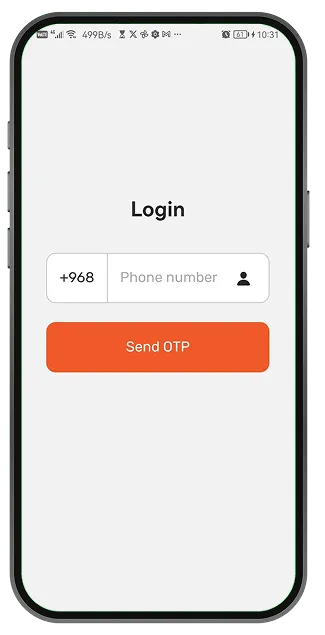
Log in with your phone number
Enter your phone number to receive an OTP via WhatsApp.
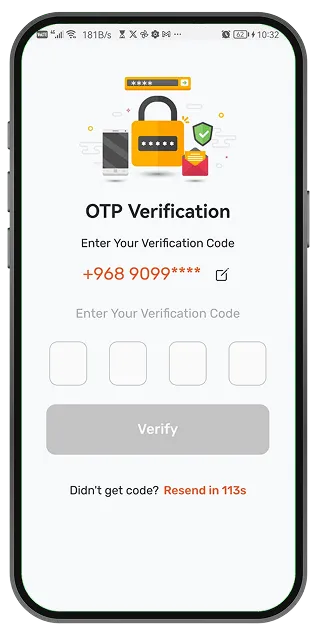
Enter the OTP received via WhatsApp
Verify your identity with the code sent to your WhatsApp account.
Select Company, then tap Find Staff Now
Choose the Company role to access employer features.
Select Industries and roles you are looking for
Define your hiring needs — industries, roles, and staffing preferences.
The number you use needs to have a WhatsApp account linked to it.
Setting Up Your Company
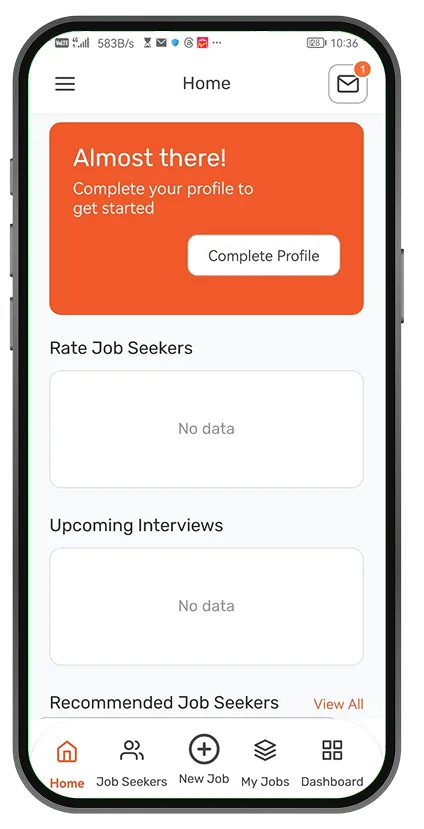
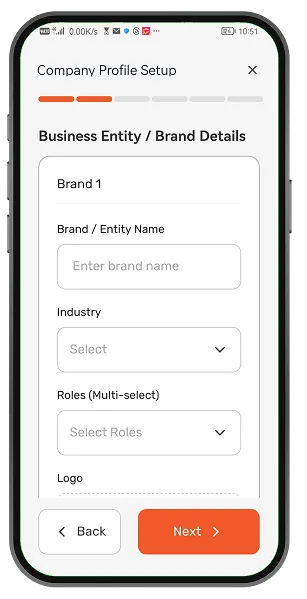
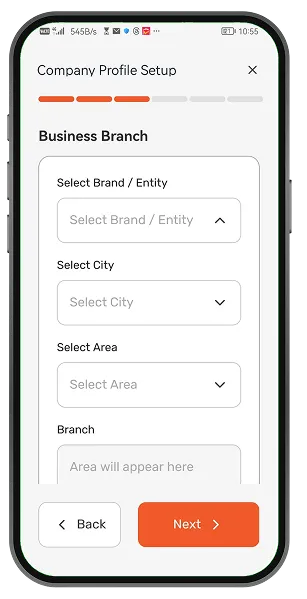
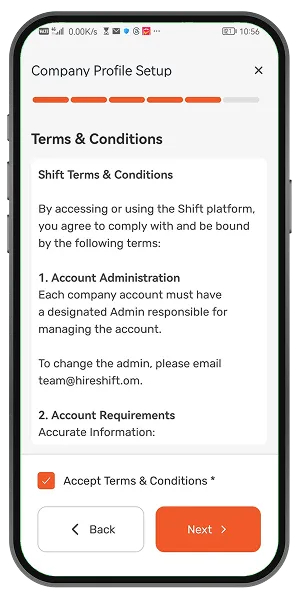
When getting started, you need to complete your company profile. A setup card will appear on the home page. Tap the button to start the Company Profile Setup Wizard, which includes the following steps:
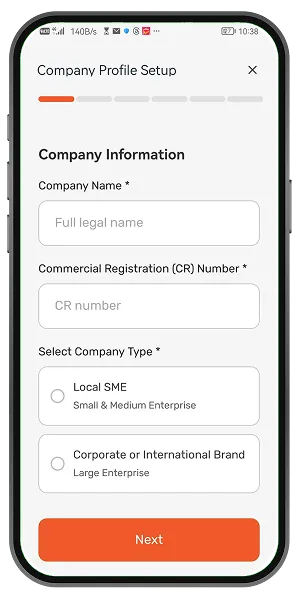
Company Details
Enter your business name, contact information, and company type.
Brand Profile
Upload your logo and set up your brand identity on the platform.
Branch Locations
Add your branch locations where you'll be hiring staff.
Terms & Conditions
Review and accept the platform's terms and conditions to proceed.
Company Profile Setup
Main Features
The main features include five key sections accessible from the bottom navigation bar:
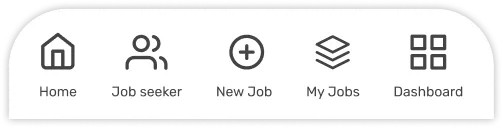
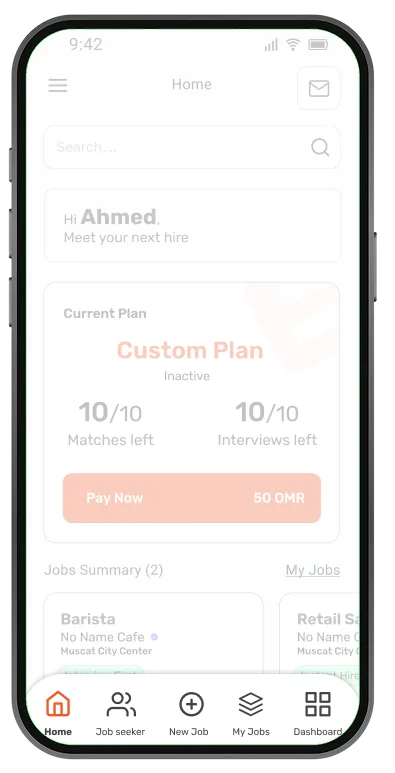
Home
Provides quick access to key features and actions within the app.
Job Seekers
Browse the list of job seekers and use search and filters to find the right candidates.
New Job
Create and publish a new job to start receiving applications.
My Jobs
View and manage all your published jobs, and handle the applications you receive.
Dashboard
Monitor your activity and manage your plans and finances.
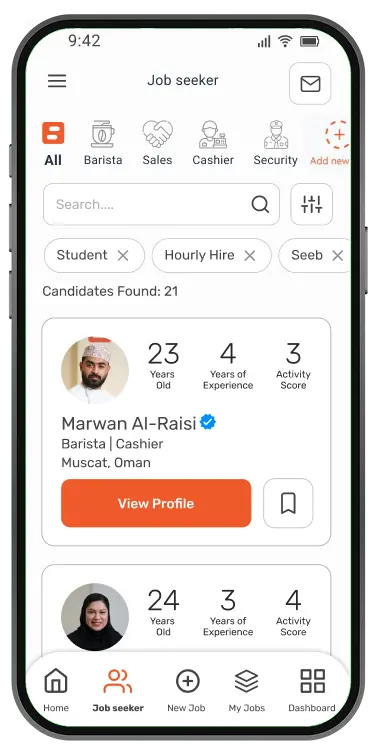
Job Seekers List
You can view detailed profiles of job seekers to assess whether they are a suitable match for your role.
Roles List
At the top of the page, select a role to filter job seekers. All candidates with that role will be displayed.
Search Bar
Use the search bar to find a specific job seeker by name or other related information.
Filter
Use the filter option to refine the list based on your requirements, such as age, years of experience, skills, language, gender, and more.
Active Filter
After applying filters, the selected parameters appear at the top of the list, allowing you to review or manage them easily.
Job Seeker Card
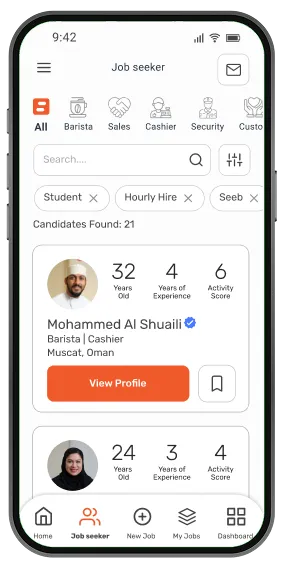
Each card shows three main KPIs: Age, Years of Experience, and Activity Score. It also displays roles and location. Click "View Profile" for full details.
Save Job Seeker
On each job seeker's card, you can add them to your Favorites list for quick access later.
Marwan Al-Raisi
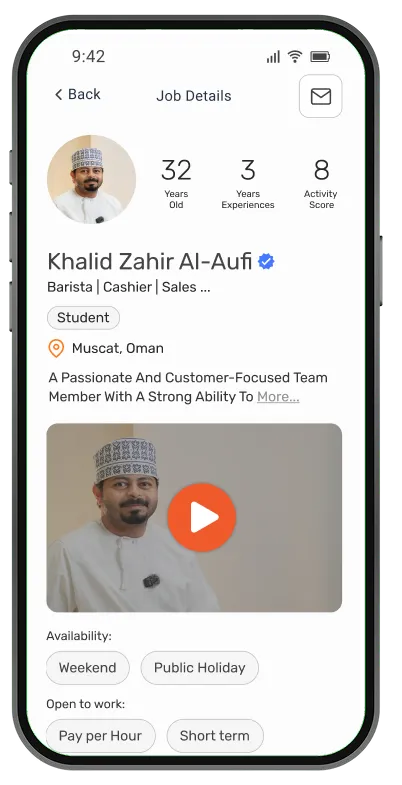
Job Seekers Profile
This page provides key information to help you evaluate a candidate.
Profile Details include:
- Status (Student, Working, Job Seeker)
- Location & bio
- Availability & job preferences
- Skills, experience, and languages
- Preferred locations & education
Intro Video of Job Seeker: In the profile, you can watch a short intro video (under 30 seconds) to evaluate the job seeker's personality, communication skills, and overall fit.
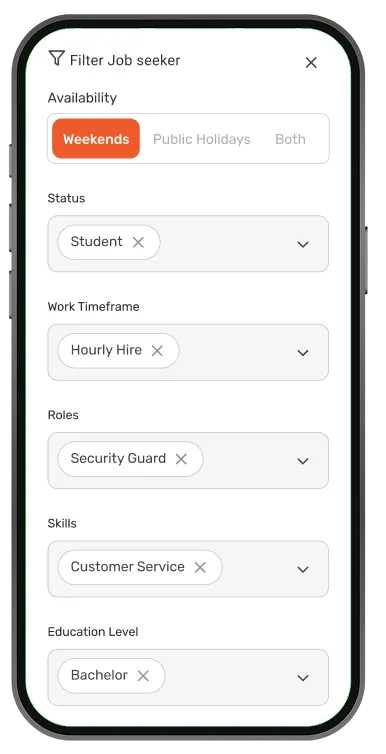
Filter Job Seekers
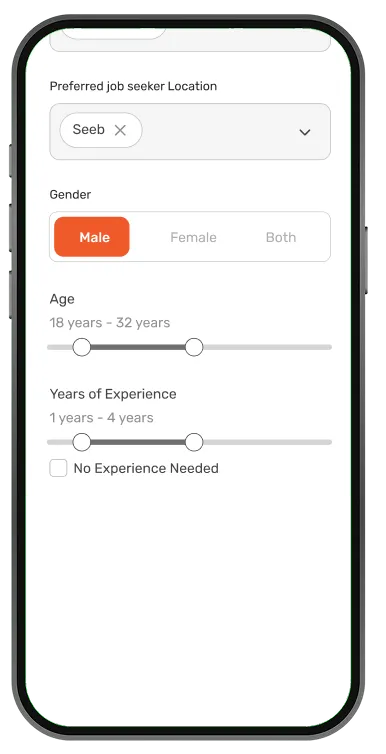
To find the right candidates, you can refine your search using the following filter options:
| Filter | Description |
|---|---|
| Availability | Weekends, Public Holidays, or Both |
| Status | Student, Working, Job Seeker, etc. |
| Work Timeframe | Hourly, Short-term, Full-time |
| Roles | Filter by specific job roles |
| Skills | Filter by required skills |
| Education Level | Below High School, Bachelor, etc. |
| Preferred Job Location | Filter by location preferences |
| Gender | Male, Female, or Both |
| Age Range | Set minimum and maximum age |
| Years of Experience | Filter by experience level or No Experience Needed |
My Jobs
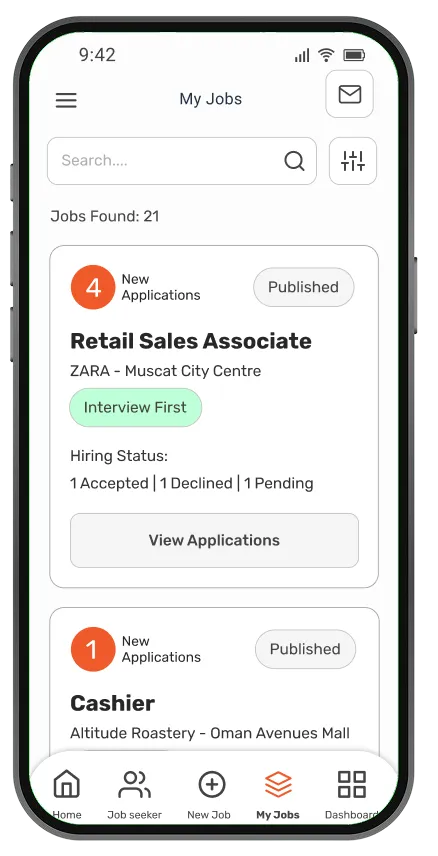
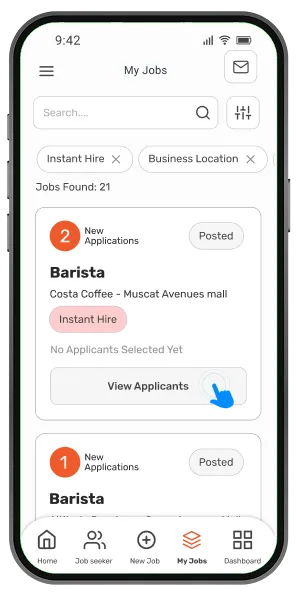
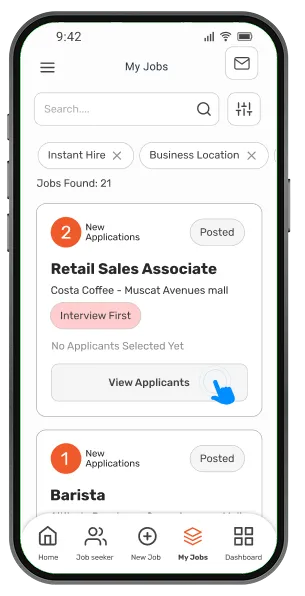
On this page, you can view all your published jobs and their status. Tap a job to see details and applications, and manage candidates by declining, sending hiring requests, or inviting them to interviews.
Retail Sales Associate
Cashier
Tap "View Applications" on any job card to manage all candidates for that position.
Dashboard
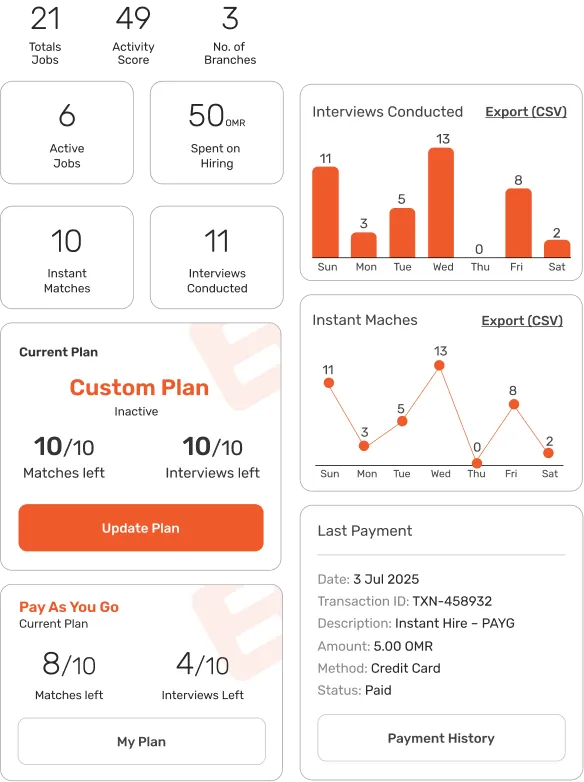
The Dashboard provides an overview of your activity and account. This page helps you track performance, manage your plan, and monitor your financial activity in one place.
1. Key Metrics (KPIs)
Total Jobs, Activity Score, No. of Branches, Active Jobs, and total amount spent on hiring.
2. Plan Management
Manage your subscription and usage through two cards: Current Plan and Pay-As-You-Go.
3. Payments
View your latest payment and access your payment history with download invoice option.
Current Plan
Interviews left
Create a New Job
Job Types
In the Shift app, there are two types of job postings:
Employers can hire job seekers directly without conducting an interview. After receiving applications, they can review and select the most suitable candidate.
Employers review applications and shortlist candidates. They can then schedule interview sessions before making a final hiring decision.
Create a New Job
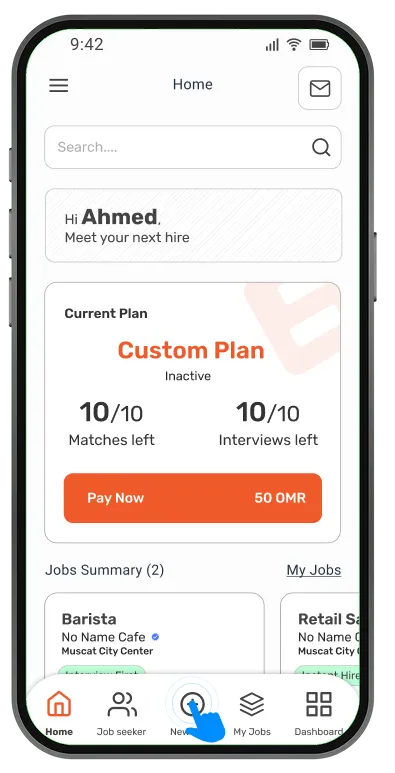
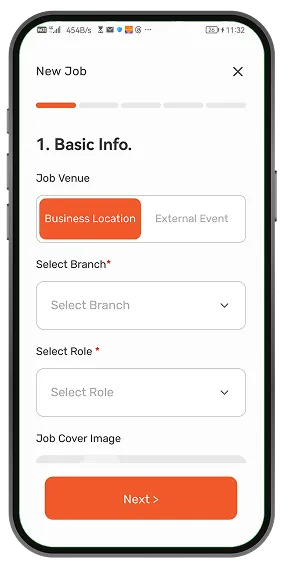
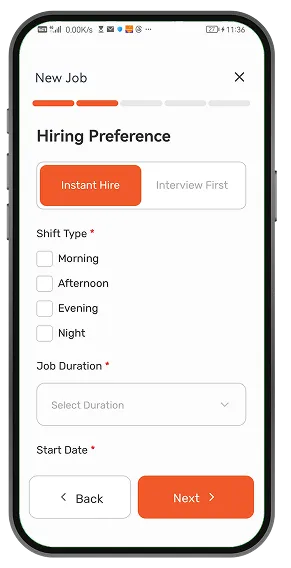
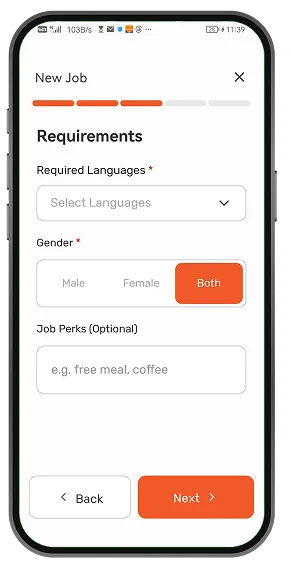
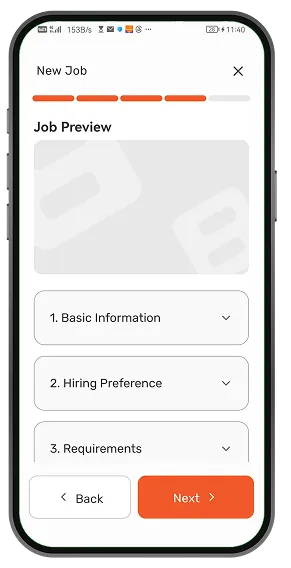
To create a new job, navigate to the Main Menu located in the bottom navigation bar and tap the "+" (Create Job) icon. You will then be guided through a simple, step-by-step process to enter all the required job details and publish your listing.
Basic Information
Enter job title, branch location, job duration, shift type, hourly rate, and work timeframe.
Hiring Preference
Select the hiring type: Instant Hire or Interview First.
Requirements
Define candidate requirements: roles, skills, dress code, languages, and responsibilities.
Review & Preview
Review all the entered details before publishing.
Publish Job
Confirm and publish your job listing to start receiving applications.
Create a New Job — Steps
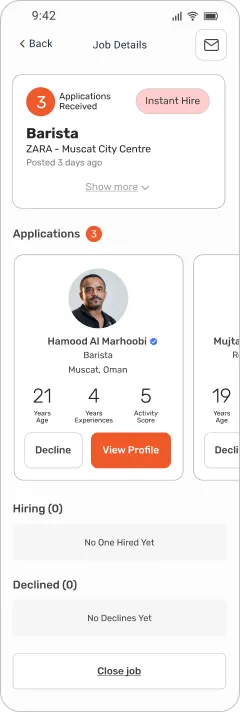
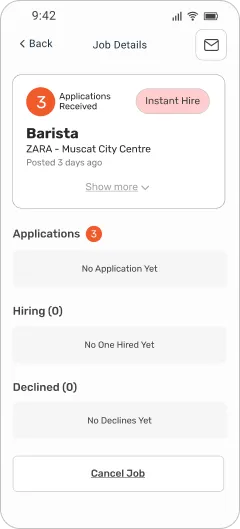
Job Details — Instant Hire
At the top of the page, you will see a card displaying the full details of the job.
Job Information
Full job card with title, location, posting date, and hiring type tag.
Applications
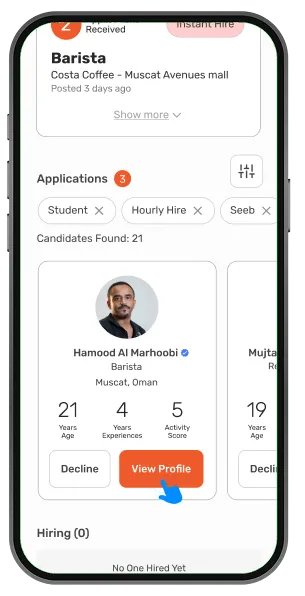
All received applications listed here. Decline or review each candidate's profile.
Hiring
Applications you've moved forward (by sending a hiring request) appear in this section.
Declined
Declined applications are shown here for reference.
Tap "Show more" on the job card to see full details, then tap "Edit Job" to make changes. Note: You can only edit if no applications have been received yet.
You can Cancel Job before hiring any job seeker, and Close Job after hiring the first one.
Job Details — Interview First
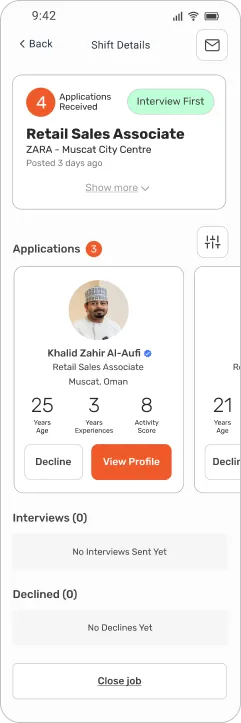
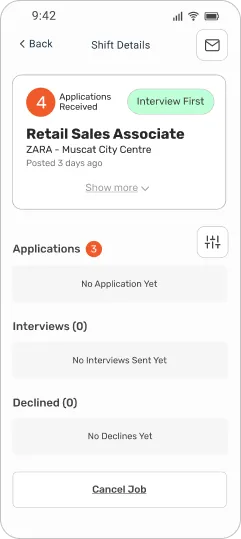
Similar to Instant Hire, but with an Interviews tab replacing the direct hiring tab.
Applications
All received applications listed here. Decline or invite to interview.
Interviews
Applications you've moved forward (by sending an interview invitation) appear here.
Declined
Declined applications are shown here.
After scheduling an interview with the first job seeker, you can Close Job to stop receiving new applications.


Edit Job
Go to My Jobs page
Tap on the job card, then tap "Show more"
Expand the job details card to see all information.
Tap on "Edit Job"
The Edit Job button appears in the expanded card view.
Note: You can only edit a job as long as no applications have been received.
Instant Hire Process
Instant Hire Process
Full flow: Create Job → Choose Instant Hire → Publish → Get Applications → Review Candidates → Send Hiring Request → Candidate Accepts
Sending Hiring Request
Go to the My Jobs page
Select the job and review the received applications
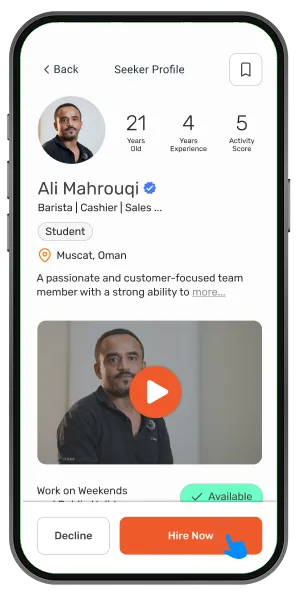
In Job Seeker's profile, tap "Hire Now"
Open the candidate's profile to review their full details, then tap Hire Now to send the hiring request.
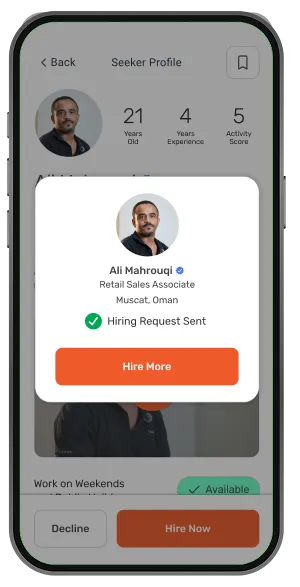
Hiring request sent to job seeker
The candidate receives the request and can accept or decline.
Waiting for job seeker to accept
The status shows Pending until the candidate responds.
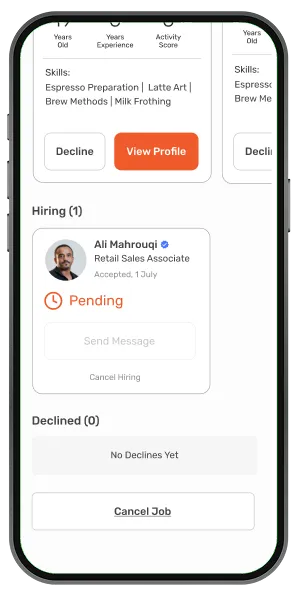
Application Stage — Instant Hire
Pending
Hiring request sent. Application status will be Pending until the job seeker responds.
Accepted Hiring
When the job seeker accepts your request, the status changes to Accepted Hiring.
After Starting Job
If the hired job seeker does not show up, you can send a Report Absence within 24 hours.
Once a report is submitted, the Shift Support Team will review and investigate the case. If required, appropriate action (such as a warning or strike) will be taken.
Interview First Process
Interview First Process
Full flow: Create Job → Choose Interview First → Publish → Get Applications → Review Candidates → Send Interview Invitation → Candidate Accepts → Start Interview
Sending Interview Invitation
Go to the My Jobs page
Select the job and review the received applications
Tap "Invite to Interview"
In the Job Seeker's profile, tap "Invite to Interview" if you want to hire the candidate.
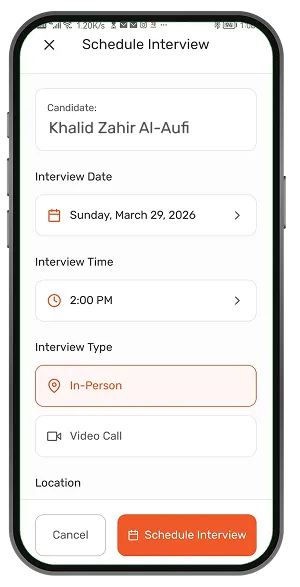
Schedule the interview
You need to select the date and time for the interview session.
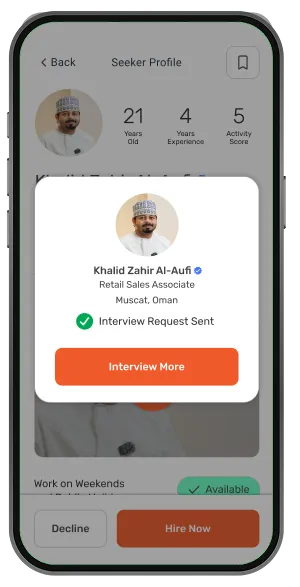
Confirm sending the Interview Invitation
The candidate receives the invitation and can accept, decline, or request a reschedule.
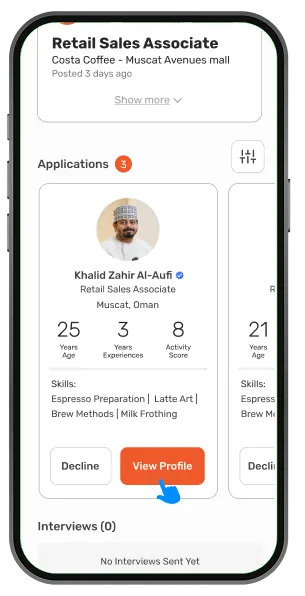
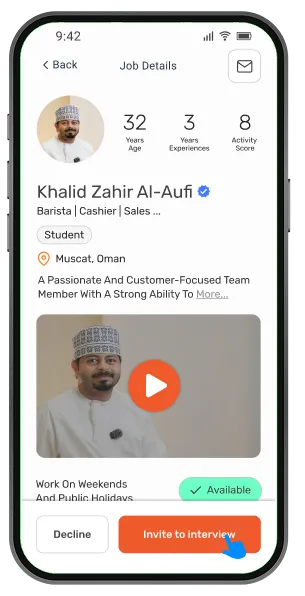
Application Stage — Interview First
Pending
After sending an interview invitation, the status will be Pending until the job seeker responds.
Accepted – Interview Scheduled
When accepted, you can: Send messages, Reschedule the interview, or Cancel the interview.
After Interview Starts
If the job seeker does not show up, you can submit an absence report within 24 hours.
Interview Rescheduling
If the job seeker is unable to attend at the proposed time, they have the option to request a reschedule.
Company Sends Invitation
The company schedules and sends an interview with a specific time.
Job Seeker Requests Reschedule
If the job seeker cannot attend, they may request a new time slot.
Company Reviews Request
The company reviews the reschedule request and may confirm a new time.
Invite a Job Seeker
Invite Job Seeker to a Job
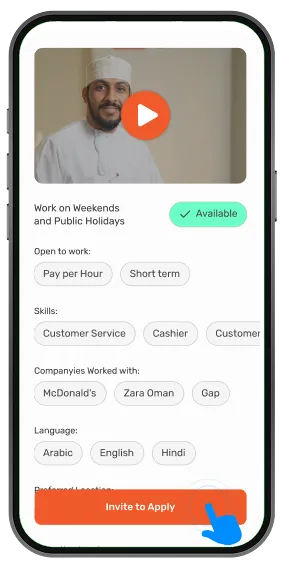
You can proactively invite job seekers from the Job Seekers list to apply for one of your published jobs.
Go to the Job Seekers page and browse candidates
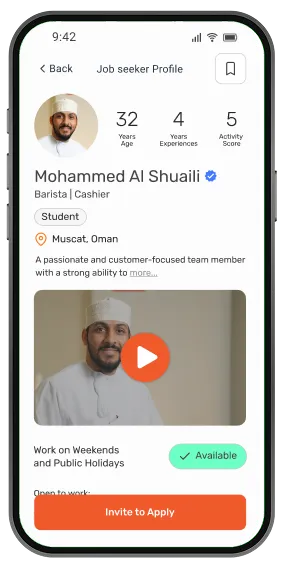
Open a job seeker's profile and review their details
Tap "Invite to Apply"
This button appears on the job seeker's profile page.
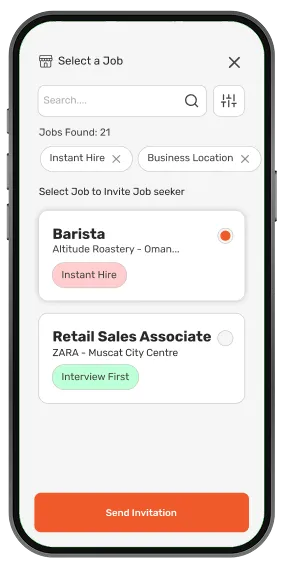
Select one of your published jobs
A list of your active published jobs will appear for selection.
Send the invitation
The job seeker will receive an invitation to apply for the selected job.
Manage Job Seekers
Save Job Seeker
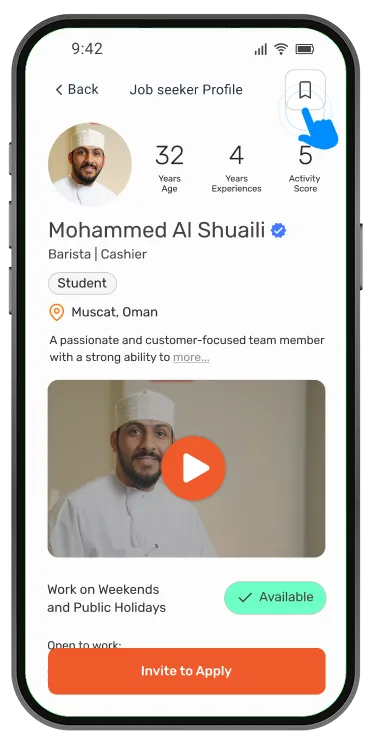
You can save a job seeker for quick access later.
To save a job seeker:
- Open the job seeker's profile.
- Tap the Save (🔖) icon at the top of the page.
- The job seeker will be added to your saved list.
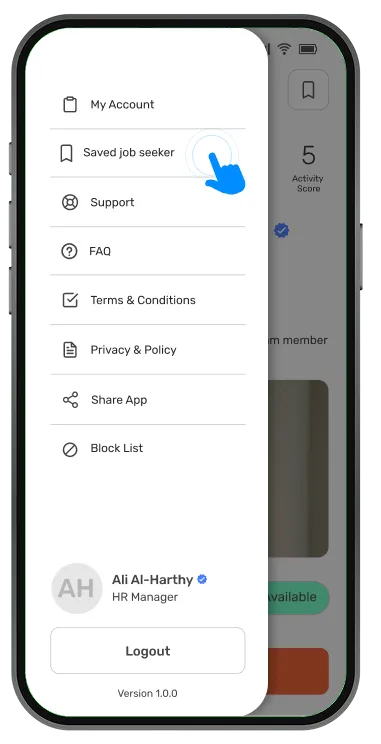
To access Saved Job Seekers:
- Open the top menu (burger menu).
- Select "Saved Job Seeker".
Clear from Saved List
To remove a job seeker from your saved list:
Go to the Saved Job Seeker page
Access it from the top burger menu.
Tap the Save (🔖) icon again to unselect it
The job seeker will be removed from your saved list.

Block Job Seeker
You can block a job seeker for any reason.
To block a job seeker:
Go to the job seeker's profile page
Scroll to the bottom
Tap "Block Job Seeker"
Once blocked, the job seeker will appear in your Blocked list (accessible from the top menu) and will not be able to view your job posts or apply to your jobs. You can manage blocked users anytime from the blocked list.
Unblock Job Seeker
To unblock a job seeker:
Open the top menu (burger menu)
Go to the Blocked Job Seeker list
Find the job seeker you want to unblock
Tap "Unblock"
Once unblocked, the job seeker will be able to view and apply to your jobs again.
Support Page
You can access this page at any time through the top sidebar menu. Our team is available to assist you with any questions or issues you may have.
Contact our support team directly via WhatsApp for fast assistance.
In-App Messaging
Send a message directly within the Shift app.
You will receive a response within 24 hours.
FAQ Page
You can access this page at any time through the top sidebar menu. Find answers to common questions about the Shift app on this page. The FAQ covers topics such as job posting, hiring processes, plans, and account management.
Access the FAQ from: Top menu (☰) → FAQ
Legal Information
To view the Terms & Conditions and Privacy Policy, open the top menu (burger menu) and select the respective pages.
We recommend reviewing these sections to understand your rights, responsibilities, and how your data is handled.
Messages and Notifications
Messages & Notifications
You can access this section from the top of the page by tapping the envelope icon. A popup will open with two tabs: Messages and Notifications.
Messages
Chat with job seekers and the Shift support team. You can only send messages to a job seeker after they accept your hiring request or interview invitation.
Notifications
Receive all updates related to your activity and interactions within the app — applications, offers, shift reminders, and more.
Important: Before a job seeker accepts your hiring request or interview invitation, messaging is not available.
Manage Plans
Free Trial 14 Days
When you use the Shift app for the first time, you automatically receive a 14-day free trial with full access to all features for one branch.
⚡ Instant Hire
🎤 Interview
Use this trial period to explore the platform, test its features, and start hiring with no cost.
Plans & Pricing
Shift offers flexible options to manage your usage based on your needs:
💰 Pay-As-You-Go
Top up credits and pay based on your actual usage.
- Instant Hire matches
- Interview matches
- No commitment
📦 Subscription Plans
Choose from different plans designed for your business type.
- Better value per match
- Set credits for 6–12 months
- Starter & Premium tiers
🎛️ Custom Plan
If subscription plans don't meet your requirements, contact us.
- Tailored to your business
- Flexible terms
- Contact support team
Pay-As-You-Go (PAYG)
After the trial period, your account automatically switches to the PAYG plan. With PAYG, you can purchase credits based on your needs.
⚡ Instant Hire Matches
🎤 Interview Matches
This option gives you full flexibility to pay only for what you use. You can select the amount of credits for Instant Hire matches or Interview matches separately.
Subscription Plans
Subscription plans provide a set number of credits for instant hire or interview matches based on your business needs. These plans offer better value compared to Pay-As-You-Go, with lower cost per match.
🥉 Starter
- 10 Instant Hire Matches — 50 OMR
- 10 Interview Matches — 50 OMR
- Valid for 6 months
🥇 Premium
- 20 Instant Hire Matches — 125 OMR
- 30 Interview Matches — 125 OMR
- Valid for 12 months
Custom Plan
If your business has specific needs, you can request a custom plan tailored to your requirements. Please contact our Support Team to discuss your usage and get a plan designed for you.
Contact us via WhatsApp or email at [email protected] to discuss a custom plan.
Match Credits
A Match Credit is used when a successful match occurs — when a job seeker accepts your hiring request or interview invitation.
Send Requests — Free
You can send unlimited hiring requests and interview invitations at no cost.
Credit Deducted on Accept
You are only charged when a job seeker accepts your request or confirms an interview.
No Charge on Decline
If a job seeker declines or doesn't respond, no credit is deducted.
Credits are only deducted when a job seeker accepts your request — not when sending requests.
Manage Your Plan
Open the top menu (sidebar menu)
Tap the burger icon at the top of the screen.
Go to My Account
Select "My Plan"
Tap "Upgrade Plan"
Browse available plans and select the one that fits your business needs.
Payment History
Payment history can be viewed in the Dashboard tab. At the top of the page, you can use the filter to view different transaction types.
Subscription
View all subscription plan payments.
Pay-As-You-Go
View all individual PAYG transactions.
LPO
View transactions processed via Local Purchase Order.